How Calendly Typeform Integration Works and Why It Improves Scheduling Workflows
Calendly Typeform integration connects the structured response collection capabilities of Typeform with the automated scheduling engine inside Calendly. When activated, the integration displays a Calendly scheduling interface immediately after a respondent completes your Typeform. This creates a unified, frictionless process where users submit details first and book time second. Unlike typical scheduling flows where the user selects a time slot before providing context, this integration prioritizes information gathering and allows you to qualify a booking before it appears on your calendar.
The integration follows a simple logic pattern. A Typeform response is submitted, and based on that submission, your user is routed to a Calendly booking link. This can be a general scheduling link or a specialized event type such as a consultation, demo call, onboarding session, interview, or internal meeting. The integration is configured within Typeform’s Connect panel and uses Calendly’s compatibility settings to embed the scheduling window or redirect the user to Calendly automatically. More information can be found within the official Typeform Connect documentation for Calendly, available through their integration page at Typeform Calendly integration.
The value of this workflow comes from the combination of context-rich input from Typeform and the efficient booking capabilities of Calendly. Many teams require specific information before meetings take place. Typeform captures these details clearly and consistently. Calendly then automates time slot selection, timezone adjustments, calendar syncing, reminder emails, and meeting confirmations. Together, the systems form a comprehensive intake and scheduling mechanism that improves user experience and reduces administrative overhead.
Preparing for Calendly Typeform Integration
The success of your Calendly Typeform integration depends on well-structured preparation across both platforms. Before connecting the two systems, ensure that your Typeform is ready to collect all essential information and that your Calendly account is configured with the correct event types.
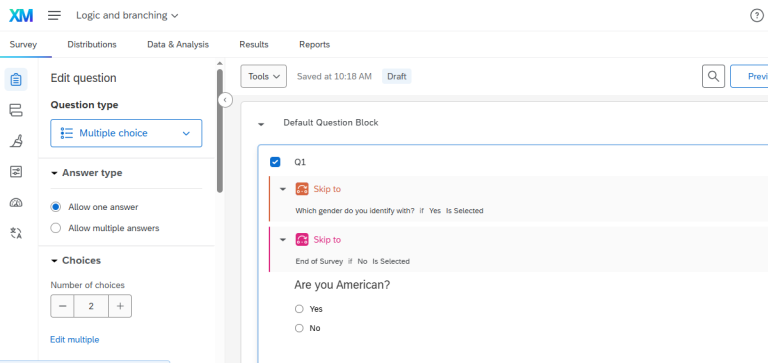
Start by reviewing your Typeform. Each question should contribute to the context needed for your meeting. For example, if you want to pre-qualify a lead, include questions about budget, project timeline, or purpose of inquiry. If the meeting is for customer onboarding, gather details about their account or expected use case. Clear labeling of each question ensures a structured flow and minimizes confusion during setup. It is also advisable to include conditional logic in your Typeform if you intend to display different Calendly links based on specific answers.
Next, confirm your Calendly configuration. Prepare the event type you want to offer users after completing the form. This includes meeting duration, buffer times, availability windows, confirmation emails, reminders, and any questions you might want Calendly to collect. Although Typeform typically gathers the initial information, Calendly may still host supplementary data fields if required. Make sure your Calendly timezone settings and calendar integrations are correct to prevent scheduling conflicts.
Consider your operational goals before you integrate. Will all respondents be allowed to schedule, or only those who meet certain criteria? If you intend to qualify users before they can access the booking page, plan these qualification checks inside Typeform using logic jumps. Think through the sequence: complete the form, meet certain conditions, then schedule. Creating this structure beforehand minimizes the need for redesigning the workflow later.
Finally, have test responses ready. Submit sample data through your Typeform so you can observe how the integration routes the user into Calendly. Testing ensures that conditional flows behave as expected, that the correct scheduling links are shown, and that the user experience remains smooth from start to end.
Step by Step Guide to Setting Up Calendly Typeform Integration
Below is a clear, structured walkthrough for configuring the integration using Typeform’s built-in Calendly connector.
Step 1: Open Typeform and Select Your Form
Log in to your Typeform workspace and choose the form you want to integrate with Calendly. Navigate to the Connect panel where integration options are located.
Step 2: Search for Calendly and Enable the Integration
Locate the Calendly integration inside the Connect directory. Select it to begin the setup process. Typeform will request permission to access your Calendly scheduling link.
Step 3: Choose the Calendly Event Link
Paste or select your Calendly scheduling link. This can be a general page or a specific event type. If you want to direct users to different event types based on form answers, you will configure this later inside your logic settings.
Step 4: Decide How the Scheduling Page Will Appear
Typeform allows two options:
- Display the Calendly scheduling interface immediately after form submission
- Redirect the user to Calendly
Choose the approach that best fits your user experience. Embedded scheduling keeps everything in one place, while redirection may be better for workflows requiring a full Calendly interface.
Step 5: Configure Conditional Logic (Optional but Powerful)
If your booking process depends on specific answers, set up logic jumps. For example:
- Qualified leads go to a discovery call link
- Existing customers go to a support call link
- Internal staff go to a calendar-based workflow
Logic ensures the right user receives the right booking option.
Step 6: Test the Integration
Submit a sample response through your Typeform. Confirm that:
- The form behaves correctly
- The Calendly interface appears as expected
- The correct event type is shown
- Bookings sync with your calendar
Testing verifies correct routing and prevents issues before launch.
Step 7: Activate the Integration
Once confirmed, switch on the integration. Typeform will now route every respondent into the selected Calendly scheduling experience.
Best Practices for Calendly Typeform Integration
Use the following best practices to maintain a clean and efficient workflow:
- Keep Typeform questions focused on qualifications or necessary context.
- Avoid collecting information in Calendly that Typeform already gathers.
- Use conditional logic for different booking paths.
- Ensure Calendly event types are fully configured before integration.
- Keep Calendly availability updated to prevent booking conflicts.
- Test workflows each time you modify your Typeform.
- Use descriptive event names to avoid confusion in your calendar.
- Maintain a backup link in case you update event URLs in Calendly.
Conclusion
Calendly Typeform integration creates a streamlined and user-friendly pathway from data collection to appointment scheduling. By connecting these tools, you ensure that every booking is supported by meaningful context, allowing teams to prepare effectively before meeting with respondents. Whether your use case involves qualifying leads, managing internal requests, scheduling consultations, or organizing client meetings, the integration reduces friction and improves overall efficiency.
This guide provided a complete walkthrough of how the integration works, how to prepare both platforms, and how to configure the workflow inside Typeform using Calendly’s scheduling link. With accurate logic, well-structured questions, and a commitment to ongoing maintenance, you can build a reliable system that increases booking conversions while enhancing the user experience. If you need expert support to implement or optimize this integration, our specialists can assist through our Typeform expert services. We help organizations build automated scheduling workflows that scale with their business needs.